Pages

Tuesday, November 2, 2010

Portable Applications for your USB Thumb Drive

GadgTechWorld.blogspot.com


The cost of USB Thumb Drive has dropped significantly during the past few years. To make use of the amount of storage in those drives, I recommend the use of this PortableApps.

PortableApps is a collection of portable software that allow customers to add to USB Thumb Drive. There are a total of 12 different applications for your everyday use. It also included a user menu as illustrated in one of the picture I attached.


The list of these application in the standard version includes:


PortableApps Suite (Standard Edition):
  • ClamWin Portable (antivirus),
  • Mozilla Firefox - Portable Edition (web browser),
  • Gaim Portable (instant messaging),
  • OpenOffice.org Portable (office suite),
  • Sudoku Portable (puzzle game),
  • Mozilla Sunbird - Portable Edition (calendar/task manager)
  • Mozilla Thunderbird - Portable Edition (email client) and runs comfortably from a 512MB drive.
Website to download - http://portableapps.com/suite


Download complete websites to your desktop and surf them offline.

GadgTechWorld.blogspot.com

Website eXtractor saves you time and effort by downloading entire Internet sites (or the sections you stipulate) to your hard drive.

Whether you browse the web for research, work, or fun, there's nothing worse than having to wait for page after page to load in Internet Explorer or Netscape Navigator (or in other popular browsers). The problem is they will only load one page at a time. So if you are viewing a large website with a thousand pages, you'd have to click the mouse a thousand times ... and ... choose a directory/folder a thousands times when you want to save each file. You end up spending a lot of time waiting around and not enough time reading or viewing pages on the Internet.
Note: Using a regular browser to surf large websites or photo galleries takes the fun out of web browsing and makes research a real chore.
But now, with WebSite eXtractor, you can download whole websites (or parts of them) in one go to your computer. You can then view the whole site offline at your leisure - and you can whiz through the saved pages at lightning speed.
WebSite eXtractor is a great tool for researchers, journalists, students, equity analysts, business and marketing executives - as well as for those who want to browse family websites containing digital photo albums.
Advantages :
  • Transfer whole websites to CD-ROM or floppy
  • Another big benefit of the program is it changes html-links to relative names. In other words, it turns web addresses (URLs) into addresses that work on your computer.
  • Researchers, writers, and journalists can easily archive reference material from the Internet.
  • The program can download up to 100 files at a time, which saves you a huge amount of time compared to ordinary browsers.
  • Website eXtractor automatically lets you download any files that were not copied due to transfer errors or bad connections.

To download the full version use the given torrent :
http://torrents.thepiratebay.org/3655896/Website_eXtractor_9.52_Retail.3655896.TPB.torrent

If you dont have torrent client download from here :
http://www.internet-soft.com/DEMO/webextrasetup.exe

Download Multiple Free Files From Rapidshare

GadgTechWorld.blogspot.com
 
Rapidshare allows to download only a single file at a time with free account. If you want to download multiple files at the same time, you need to buy a premium account but now you can download multiple files from Rapidshare free account without paying anything with RapidShare Download Accelerator.


With RapidShare Download Accelerator, you can add all the files you'd like to download, and it will do all the annoying work for you. Now you can just sit back and watch your files download without paying a dime.

Links : Download Rapidshare Download Accelerator

Remove Autorun Virus Infection - Solution for USB, PC & Laptops

GadgTechWorld.blogspot.com

Nowadays, there is a new problem that is cropping up in almost all schools,colleges, hostels etc. where the malicious Autorun Virus is Creating Havoc by spreading to Laptops and PC through USB Drives etc.

How to Stop the Autorun PC Virus Infection ?

The free Panda USB Vaccine allows users to vaccinate their PCs in order to disable Autorun completely so that no program from any USB/CD/DVD drive (regardless of whether they have been previously vaccinated or not) can auto-execute. This is a really helpful feature as there is no user friendly and easy way of completely disabling Autorun on a Windows PC.


Panda USB Vaccine is a 100% free utility. Its tested under Windows 2000 SP4, Windows XP SP1-SP3, and Windows Vista SP0 and SP1.
Download : Click Here to get Panda USB Vaccine

Configuring BitTorrent or MuTorrent To Get Fast Downloading Speed

http://www.softsailor.com/wp-content/uploads/2010/03/BitTorrent.jpg

GadgTechWorld.blogspot.com

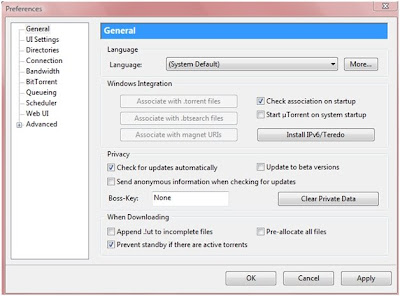
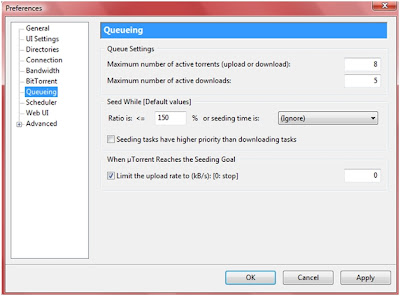
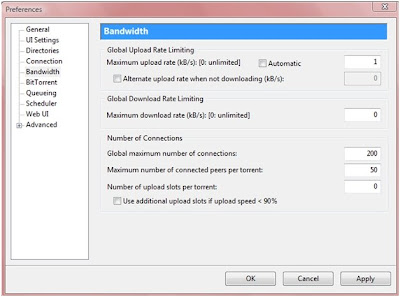
Normally when downloading torrents through torrent clients (Mu torrent etc) one does not get good downloading speeds and it becomes very annoying especially on slow internet connections. Actually it is not the software or torrents at fault but the default settings of MuTorrent (Or BitTorrent) are the culprits. When you download a torrent it is not only downloaded but also uploaded at the same time (Actually it is “Sharing”). Thus uploading also take your bandwidth reducing downloading speeds. By tweaking some settings you can reduce uploading speeds and increase downloading speed. Just follow the below given instructions:

1. Launch Mu Torrent and go to “Options/Preferences” (Or simply press Ctrl+P keys)
2. Change the default settings according to the below given snapshots i.e. the settings must be changed exactly as in the pictures below.
3. Click “Apply” and then “OK” and you are done

Installing and configuring a Wireless Router

GadgTechWorld.blogspot.com

http://www.mobilefish.com/images/tutorials/linksys_install.gif
A wireless router affords laptop or portable computer users greater mobility in their homes and businesses. In most home networks, wireless routers are connected to a cable or DSL modem, and the router sends the signals and information that make up an Internet protocol (IP) thread to the user's computer via radio signals rather than wires.
To communicate with the wireless router, individual computers house transceivers such as an internal expansion card, a peripheral docked by USB or, in the case of laptops, a PC card or hard-wired internal device. For those accessing the Internet through a high-speed connection, a wireless router can also serve as a hardware firewall (as opposed to a software program), enabling protection from undesirable outside computers without exhausting as many system resources as traditional firewall programs.


Installing a Wireless Router
First, turn off the PC and modem, then remove the Ethernet cable from the PC and plug it into the router's WAN port. Install a second Ethernet cable between the PC's Ethernet port and one of the router's Ethernet ports. Power the modem, router and then PC, waiting for the system to boot and initialize before attempting an Internet connection.
Most routers are programmed with the manufacturer's default settings, including the network's name or service set identifier (SSID), channel and sign-on password. These default settings generally may be changed using included software or an online setup utility provided by the router's manufacturer.
Configure the router by entering the router configuration IP address at the URL provided, followed by the configuration utility ID and the default password. To find your router's default IP address and the default login info, refer to the owner's manual. If you own a Linksys router, a popular brand, the IP address is usually 192.168.1.1. Two other popular brands, D-Link and Netgear, generally use 192.168.0.1.

Connecting a Printer to a Wireless Router

First, check the documentation that came with your printer to determine how it's designed to connect to computers. Connections made through Ethernet, USB and (obsolescent) parallel ports are common, but newer printers are sometimes wireless-enabled and allow you to simply add them to your wireless network.
Refer to the owner's manual for your particular wireless router. Inside, find the default IP address and the default login info. If you own a Linksys router, the IP address is usually 192.168.1.1. Other popular brands D-Link and Netgear generally use 192.168.0.1.

Connecting Two Wireless Routers

Bridging two wireless routers involves configuring both networks manually. Visit each network location - which should be recognized by your computer automatically - and configure the appropriate Service Set Identifier (SSID), Wireless Encryption Protocol (WEP) or WiFi Protected Access (WPA) key and authentication information. Make sure you know the SSID and WEP or WPA key ahead of time.

Connecting an Xbox 360 to a Wireless Router

Connecting an Xbox 360 to a wireless router allows you to use Xbox Live without physically connecting your Xbox to a cable. Power up your Xbox system and the router, then plug the wireless networking adapter into the two slots at the Xbox's rear. Unplug any existing Ethernet cables and connect the USB connector to the port adjacent to the adapter. Use the system area of the Xbox dashboard to adjust your network settings. This should connect you to the wireless network.

Monday, November 1, 2010

DHCP-(Dynamic Host Control Protocol)

IP addresses, by contrast, not only must be unique on a given internetwork, but also must reflect the structure of the internetwork. As noted above, they contain a network part and a host part, and the network part must be the same for all hosts on the same network. Thus, it is not possible for the IP address to be configured once into a host when it is manufactured, since that would imply that the manufacturer knew which hosts were going to end up on which networks, and it would mean that a host, once connected to one network, could never move to another. For this reason, IP addresses need to be reconfigurable.
http://www.networkingreviews.com/images/dhcp-server-client.jpg
In addition to an IP address, there are some other pieces of information a host needs to have before it can start sending packets. The most notable of these is the address of a default router—the place to which it can send packets whose destination address is not on the same network as the sending host. Most host operating systems provide a way for a system administrator, or even a user, to manually configure the IP information needed by a host. However, there are some obvious drawbacks to such manual configuration. One is that it is simplya lot of work to configure all the hosts in a large network directly, especially when you consider that such hosts are not reachable over a network until they are configured.


Even more importantly, the configuration process is very error-prone, since it is necessary to ensure that every host gets the correct network number and that no two hosts receive the same IP address. For these reasons, automated configuration methods are required. The primary method uses a protocol known as the Dynamic Host Configuration Protocol (DHCP).

DHCP relies on the existence of a DHCP server that is responsible for providing configuration information to hosts. There is at least one DHCP server for an administrative domain. At the simplest level, the DHCP server can function just as a centralized repository for host configuration information. Consider, for example, the problem of administering addresses in the internetwork of a large company. DHCP saves the network administrators from having to walk around to every host in the company with a list of addresses and network map in hand and configuring each host manually. Instead, the configuration information for each host could be stored in the DHCP server and automatically retrieved by each host when it is booted or connected to the network. However, the administrator would still pick the address that each host is to receive; he would just store that in the server. In this model, the configuration information for each host is stored in a table that is indexed by some form of unique client identifier, typically the “hardware address” (e.g., the Ethernet address of its network adaptor). A more sophisticated use of DHCP saves the network admininstrator from even having to assign addresses to individual hosts. In this model, the DHCP server maintains a pool of available addresses that it hands out to hosts on demand. This considerably reduces the amount of configuration an administrator must do, since now it is only necessary to allocate a range of IP addresses (all with the same network number) to each network.

Since the goal of DHCP is to minimize the amount of manual configuration required for a host to function, it would rather defeat the purpose if each host had to be configured with the address of a DHCP server. Thus, the first problem faced by DHCP is that of server discovery.

To contact a DHCP server, a newly booted or attached host sends a DHCPDISCOVER message to a special IP address (255.255.255.255) that is an IP broadcast address. This means it will be received by all hosts and routers on that network. (Routers do not forward such packets onto other networks, preventing broadcast to the entire Internet.) In the simplest case, one of these nodes is the DHCP server for the network. The server would then reply to the host that generated the discovery message (all the other nodes would ignore it). However, it is not really desirable to require one DHCP server on every network because this still creates a potentially large number of servers that need to be correctly and consistently configured. Thus, DHCP uses theconcept of a relay agent. There is at least one relay agent on each network, and it isconfigured with just one piece of information: the IP address of the DHCP server. Whena relay agent receives a DHCPDISCOVER message, it unicasts it to the DHCP server and awaits the response, which it will then send back to the requesting client. The processof relaying a message from a host to a remote DHCP server is shown in diagram 1-A Diagram 1-B shows the format of a DHCP message. The message is actually sent using a protocol called UDP (the User Datagram Protocol) that runs over IP. 
DHCP is derived from an earlier protocol called BOOTP, and some of the packet fields are thus not strictly relevant to host configuration. When trying to obtain configuration information, the client puts its hardware address (e.g., its Ethernet address) inthe chaddr field. The DHCP server replies by filling in the yiaddr (“your” IP address)field and sending it to the client. Other information such as the default router to be used by this client can be included in the options field.

In the case where DHCP dynamically assigns IP addresses to hosts, it is clear that hosts cannot keep addresses indefinitely, as this would eventually cause the server to exhaust its address pool. At the same time, a host cannot be depended upon to give back its address, since it might have crashed, been unplugged from the network,or been turned off. Thus, DHCP allows addresses to be “leased” for some period of time. Once the lease expires, the server is free to return that address to its pool. A host with a leased address clearly needs to renew the lease periodically if in fact it is still connected to the network and functioning correctly.  It is important to note that DHCP may also introduce some more complexity into network management,since it makes the binding between physical hosts and IP addresses muchmore dynamic. This may make the network manager’s job more difficult if, for example,it becomes necessary to locate a malfunctioning host.